Prime Testing Suite & Instruction Guide
Note: Prime Partner Central testing suite is only available to 3P Partners launching Prime exclusive offers in North America (US, CA, MX) at this time. We will roll out to other countries through 2025.
To facilitate robust testing of Amazon Prime and Third-Party Partner (3P) integrations, we provide Prime-owned test accounts that 3P partners can leverage for end-to-end integration testing in a production environment. This guide outlines the steps for 3P administrators to onboard to Prime Partner Central, where they can self-service the request and management of allowlisted customer test accounts tailored to their specific testing requirements, ensuring a seamless integration experience for their customers.
Getting Started
Partners can onboard to the centralized website and manage the lifecycle of their test accounts in five easy steps. Each step will be detailed in the following sections:
Step 1 - Create a 3P Partner Account
A 3P Partner Account creation is similar to creating a new account on Amazon Retail Website. You can create your account using your business email address. This account will be used by all members of your team. Follow the below steps to create your new Amazon account:
- Go to Create Amazon Account.
- Enter first and last name.
- Enter an email that will be associated with this account. (Note: Please use a mailing list email for any team member to resolve authentication issues if one time code challenge is observed when logging into Amazon)
- Enter and confirm password to be used with this account. This account will be used by your team members to login.
- Click on Continue button. (Note: You may see a captcha verification to confirm that the user is not a robot. There is an option to enter characters heard instead of a visual captcha)
- Verify your email. A code will be sent to the email you registered above.
Step 2 - Get Your 3P Partner Account Allowlisted
Once your Amazon account is created, the Amazon Prime team will need to allowlist your Amazon Account using your ‘customerId'. Follow the below steps to find your 'customerId':
- Login to SellerCentral Website.
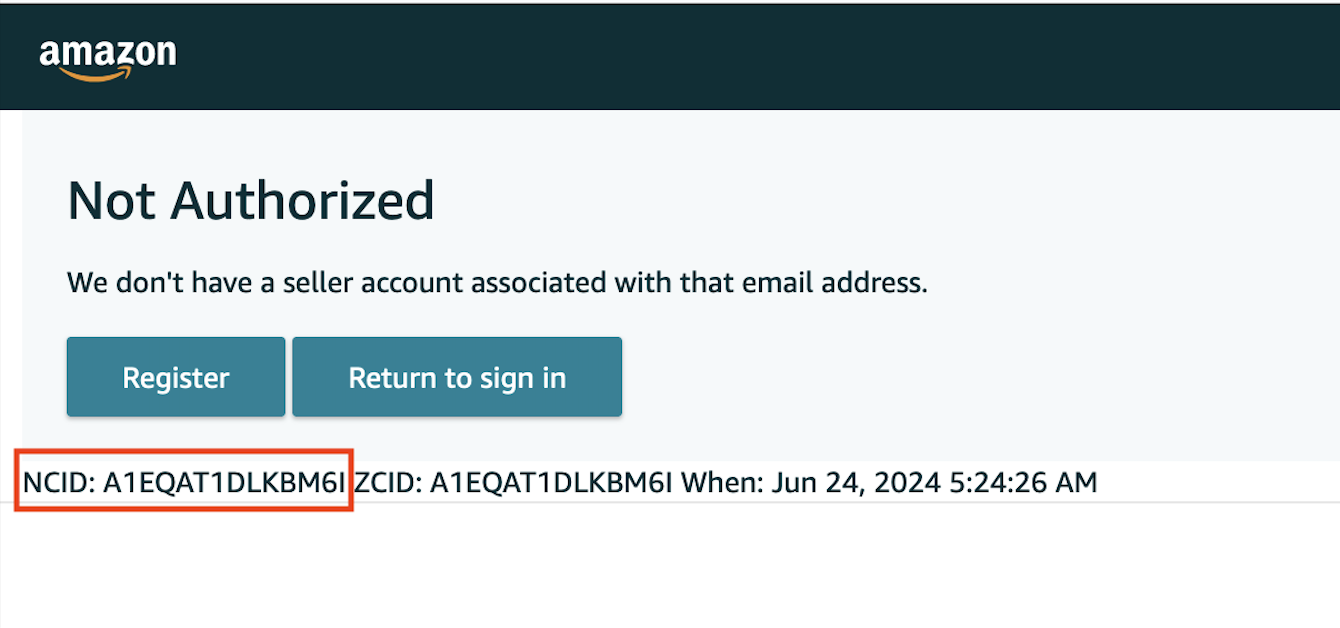
- At the bottom of the page, an NCID will be visible - screenshot below. Please share this NCID with your Amazon Prime contact (email to primepartnercentral@amazon.com) for allowlisting in Amazon systems.
Your account will be allowlisted within 48 hours post which you will be notified.
Below is the screenshot that highlights (in red) where the NCID will be displayed once logged in.
Step 3 - Access Testing Suite on Prime Partner Central Website
Once the allowlisting in Step 2 is completed, your email account is now authorized to access the Prime Partner Central Website to create and manage requests for Prime test accounts.
- Log in to Prime Partner Central Website using email and password credentials of your newly created account.
- Select the country in which you want to create test accounts. (Note: only allowlisted country options will show based on offer launch). If you do not see your country of preference, please contact Amazon Prime Admins to allowlist that country for your account.
You are now ready to register your test account policy.
Step 4 - Register your test account policy
This is the first step to opt-in for on-demand test accounts. The test account policy will enable Amazon Prime to understand the types of customer presets and the maximum number of test accounts that can be active for a 3P Partner at any given point of time. Please note that this is a one time setup to register the test policy. You can update the policy any time by navigating to ‘Policy’ in the top navigation bar.
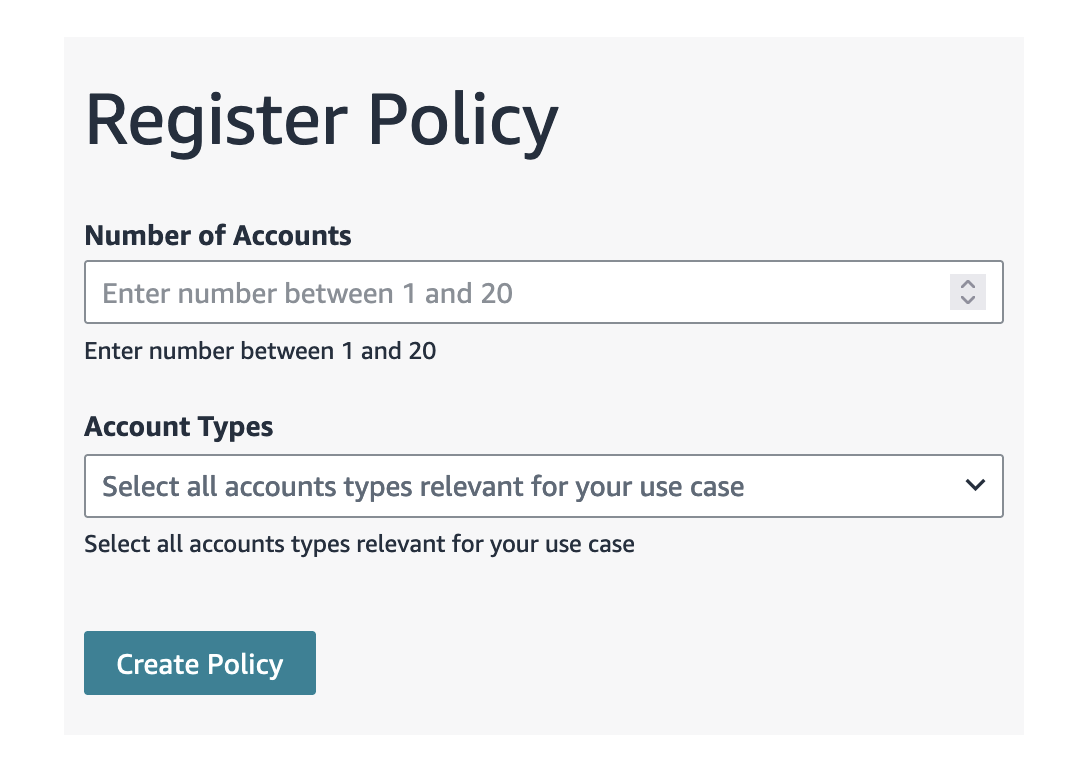
In order to register the test policy, you need to fill in two specific details:
Number of Test Accounts - This will set the maximum number of active test accounts in your country policy at any particular point of time. We currently support a max of 20 active test accounts at a given time for each country policy. Test accounts are set to expire at their expiry date if not deleted by the user. Please select a reasonable limit ( <= 20) depending upon your requirement and delete used test accounts to generate new ones.
Customer Account Types - These are customer account presets we provide for your testing. Please select only those presets from the list that are relevant for your testing. There are three types of accounts that we support today.
- Basic Account - This is a non-prime account with valid credentials to login on Amazon Retail Website.
- Prime Free Trial Account - This account has Prime free trial membership enabled.
- Student Free Trial Account - This account has Prime Student free trial membership enabled.
Once you register your policy, you will see a success message and are now ready to create your test accounts.
You can also wish to update your already registered policy by visiting this link.
Step 5 - Manage Test Accounts
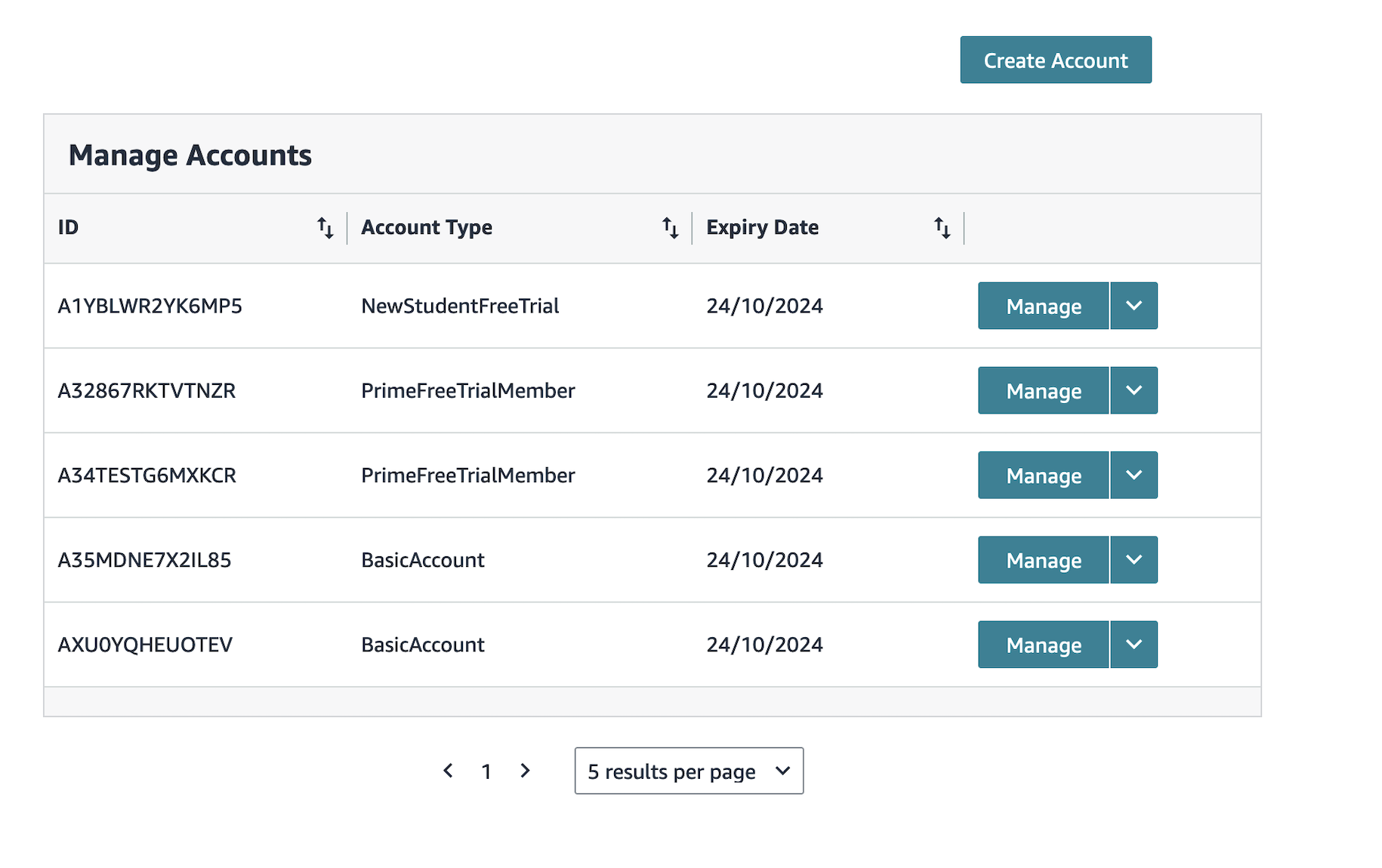
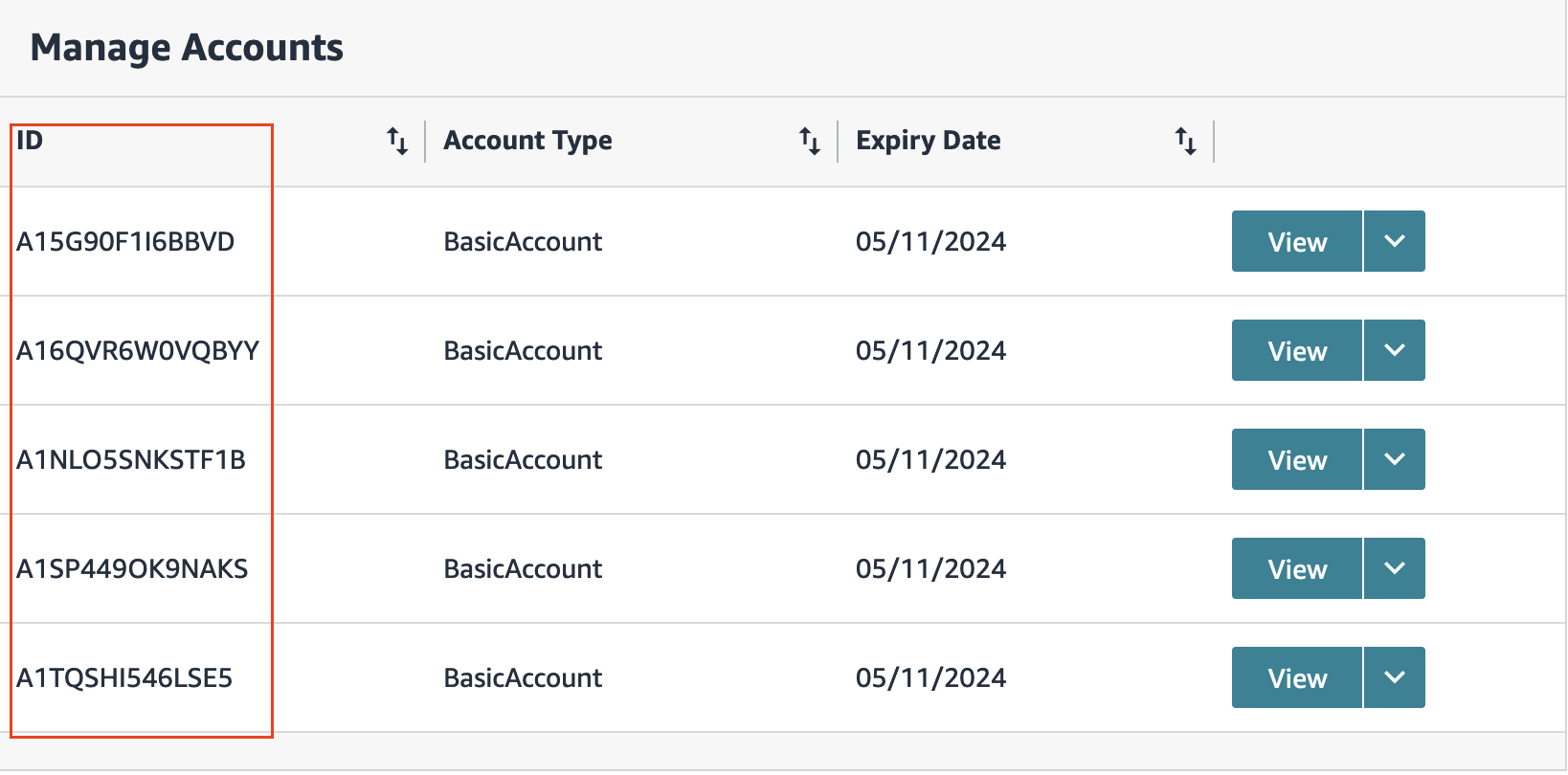
Your list of active test accounts will be listed here. You can see account types and their expiry dates in this view. All active test accounts will expire 30 days from creation. Expired test accounts will be deleted and not be visible on this page. Additionally, you can create new test accounts or delete the existing test accounts as per your needs. You can return to this page any time to manage active accounts.
Creating Test Accounts
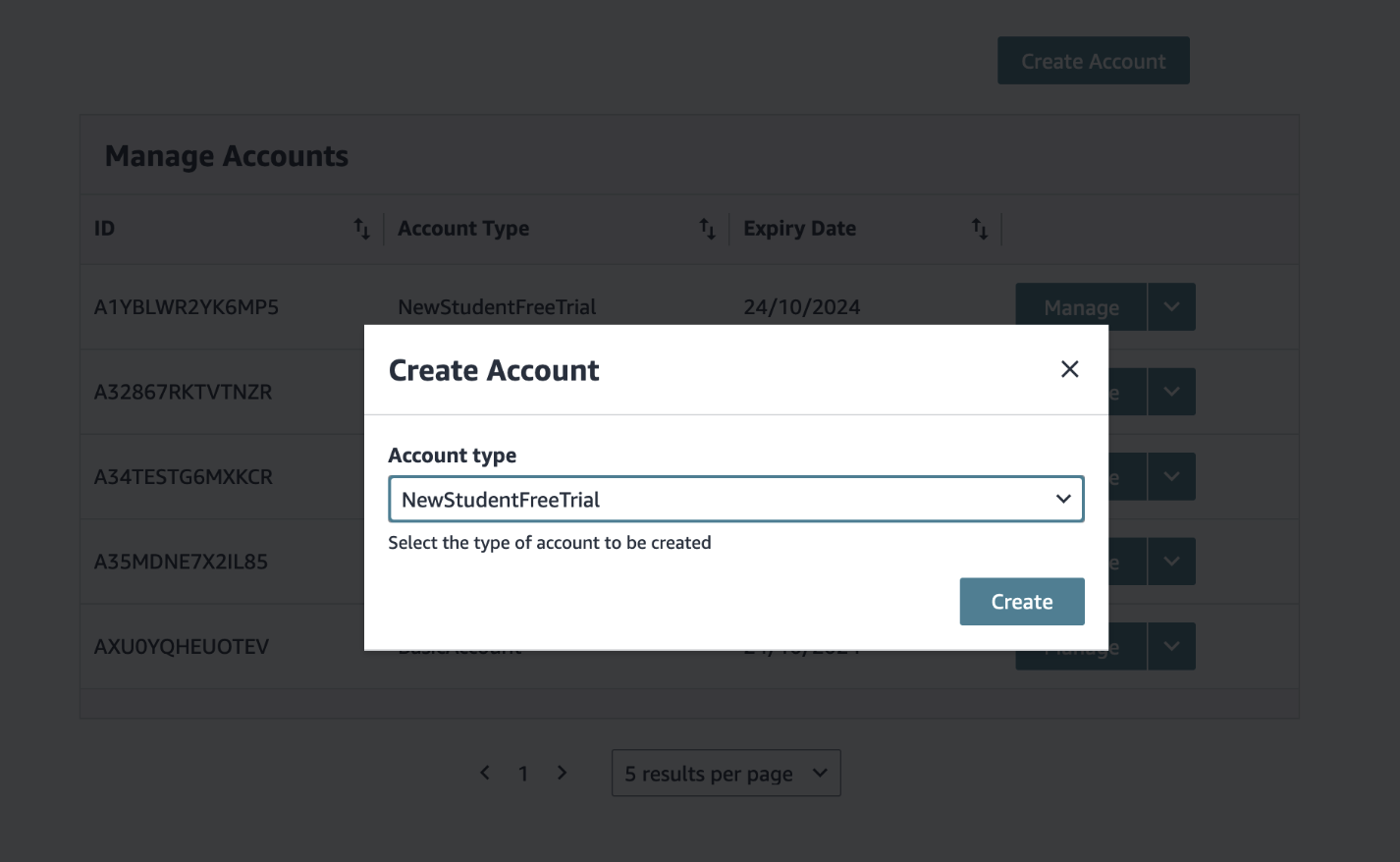
Click on ‘Create account’ button on this page and select a customer account type from the dropdown. The list of account types will be populated in dropdown based on policy registered in Step 4. You can generate only one test account at a time. Once a test account is created, you can click ‘View’ to see test account details. If you have reached your limit of active test accounts, then you will not be permitted to create new accounts till you do not delete existing accounts.
Delete Test Accounts
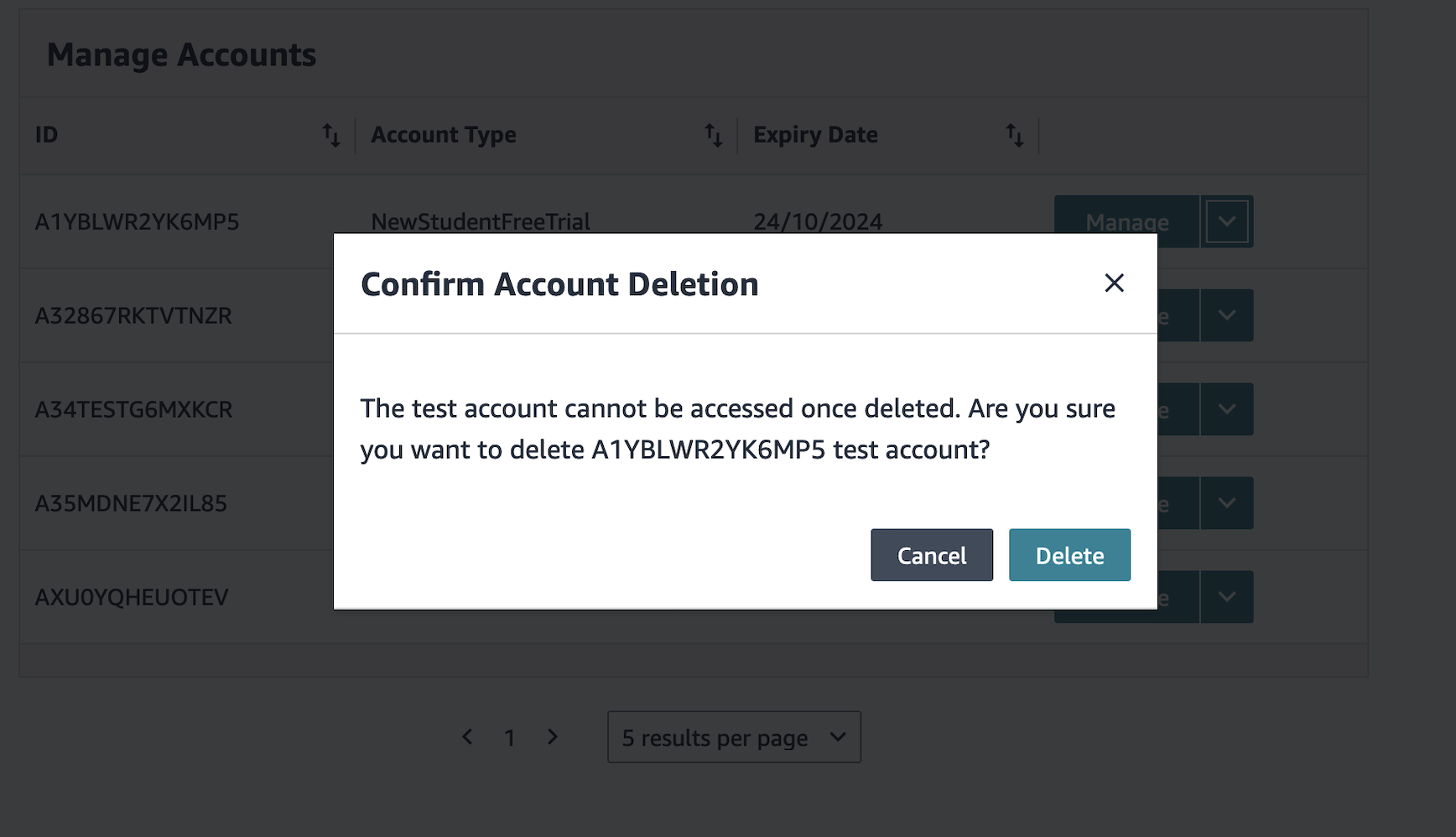
If you do not need a test account anymore, simply click on ‘Delete’ button in the dropdown for that test account. The test account will be deleted and will not be accessible or usable again.
Getting OTP for APAY clients
OTP is required for customers going through APAY login. In order to receive an OTP for test accounts, please follow these instructions to update the email associated with the test account:
- Refer to the following guide on how to update email for account.
- Following are some examples of what to update the email to. Please choose an email that you have access to.
- An existing email: testUser@company.com.
- If you have an existing email that is testUser@company.com, you can enter testUser+12345@company.com as the test account's new email
- Notice the
+. This will route emails for testUser+12345@company.com to testUser@company.com. - You can use any random number after the
+.
- Notice the
- Login to the existing email that was referenced when updating the test account's email to retrieve OTP.
Test Account usage guardrails
The usage of Prime-owned test accounts is strictly limited to testing the 3P offer approved CX flow. Please note that performing any other action is strictly prohibited. Amazon regularly audits the supplied test accounts for any potential abuse. Any kind of abuse if detected leads to the deletion of test account immediately and will lead to disabling test accounts for a particular 3P Partner in the future. Following actions are not permitted with these test accounts at any stage and will be treated as abuse.
- Using Prime benefits (see list here) on Amazon Retail Website.
- Registering the account as a seller on Amazon Retail Website.
- Adding items to cart and placing orders on Amazon Retail Website.
- Authenticating using these test accounts on other external websites (apart from registered 3P partner) via Login with Amazon or Amazon Pay.
- Sign up for any (non-Prime) Amazon subscriptions (free trial or paid subscription)
Frequently asked questions
Can I create test accounts with customer presets other than those registered in the test policy?
No. A 3P Partner is allowed to choose only from the customer account types selected while registering the test policy. If required, a 3P Partner can choose to update the existing test policy with additional available presets. Note: Presets are determined by Prime team for the 3P partner.
Can I delete a specific test account?
Yes, you can delete an active test account by managing the test account here. Click on dropdown menu for the Test Account and then ‘Delete’ button to delete that specific test account. Note each active test account is automatically set to delete after 30 days from creation.
Why is the 6-month Prime Student free trial test account deleting after 30 days?
All test accounts are set to expire 30 days after date of creation. This is done to limit any potential abuse scenarios for older accounts and to comply with Amazon’s policy of sharing test accounts with 3P Partners. Note: A Test Account’s Prime membership renewal date may show differently in Prime membership management page when logged into amazon.com with that test account credentials.
Can I use these test accounts to place orders on Amazon?
No, the usage of Prime-owned test accounts is strictly limited to testing the 3P offer approved CX flow only. Performing any other action is strictly prohibited. Amazon regularly audits the supplied test accounts for any potential abuse. Any kind of abuse if detected leads to the deletion of test account immediately and will lead to disabling test accounts for a particular 3P partner in the future. See Test Account usage guardrails section above for list of actions prohibited on these test accounts.
Will my test accounts delete automatically?
All test accounts are set to automatically delete after 30 days from creation date. You can opt to delete a test account before its 30-day expiry date and create a new account for your testing needs.
Can I use these test accounts for both front-end and back-end testing before Prime x 3P offer launch?
For Prime x 3P offers involving Amazon Prime hosted co-branded pages, these test accounts can be used for testing back-end integration only. Amazon Prime hosted pages are gated before launch. For front-end testing before launch, please share specific test account IDs from the ID column (highlighted in red in the screenshot below) with your Prime QA POC, so they can be separately allow-listed before testing. Post offer launch, test accounts can be used for both front-end and back-end testing as needed. Note: For offer launching using Benefit Scope construct, there is no front-end testing requirement.
Go to PrimePartnerCentral
Note: Prime Partner Central testing suite is only available to 3P Partners launching Prime exclusive offers in North America (US, CA, MX) at this time. We will roll out to other countries through 2025.